Transaction Log
Last updated: 10/23/2025
The transaction log tracks all transactions made through any payment orchestrator utilized by your business unit.
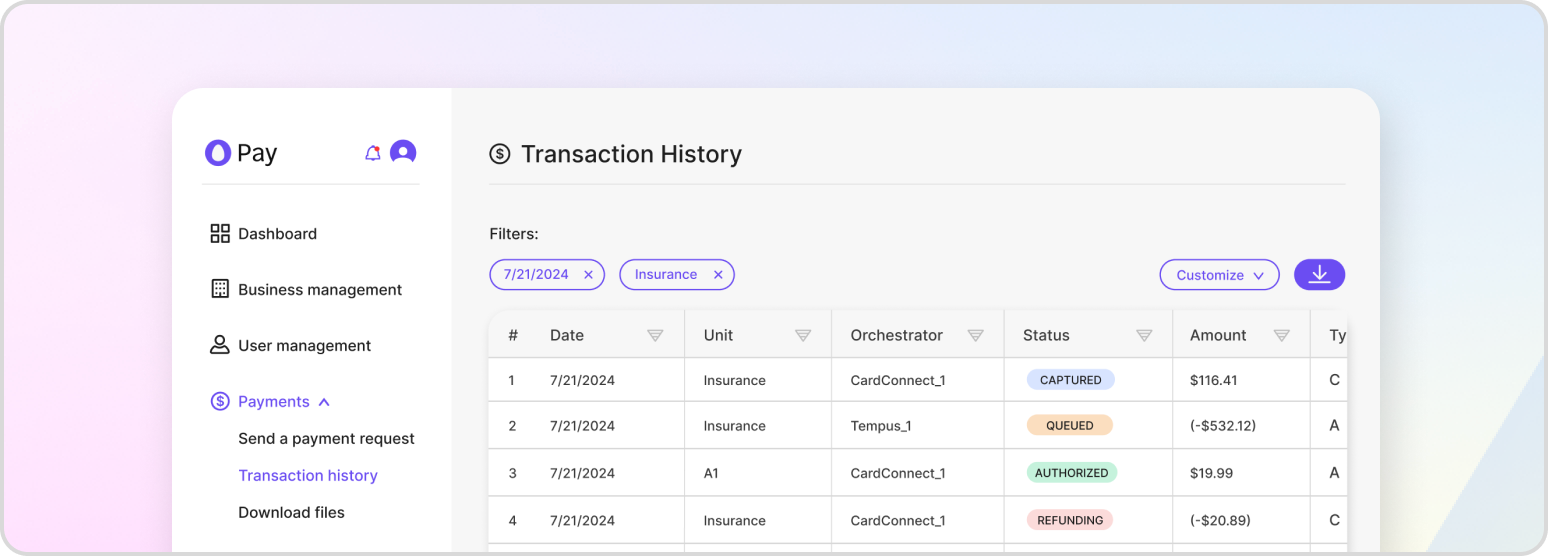
The transaction log within your HatchPay account tracks all transactions made through any payment orchestrator utilized by your business unit. This log is helpful for verifying the status of your transactions, such as if a customer has an issue with their payment, users in your business unit can look into the logs to find the issue.
Viewing Transactions
To access the transaction log, you can navigate to the “Payment History” page within your HatchPay account. From there, you can filter the table based on date and merchant to organize the transactions and find the one you are looking for.
Transaction Statuses
A transaction can have different statuses depending on the step it is on when authorizing and capturing a payment. For more information on this, please refer to our Auth + Capture Payment tutorial.
Modifying a Transaction’s Status
There may be times when you need a transaction to be voided or refunded. You can do so by clicking on the transaction you want to change the status of from the “Payment History” table. There, you can either select “void” or “refund.” Note that either of these actions cannot be reversed.
Generating Transaction Data
HatchPay’s transaction logs gives your business unit’s data analysts information about its transaction history to analyze. From the Payment History page, you are able to export files in JSON, CSV, or TXT format. From the “Export” dropdown, select the file type you would like to export the transaction data as and it will be downloaded to your computer.