First Time Setup
Last updated: 10/23/2025
Take the first steps on your HatchPay journey! Learn how to setup all of the essentials to take advantage of the product.
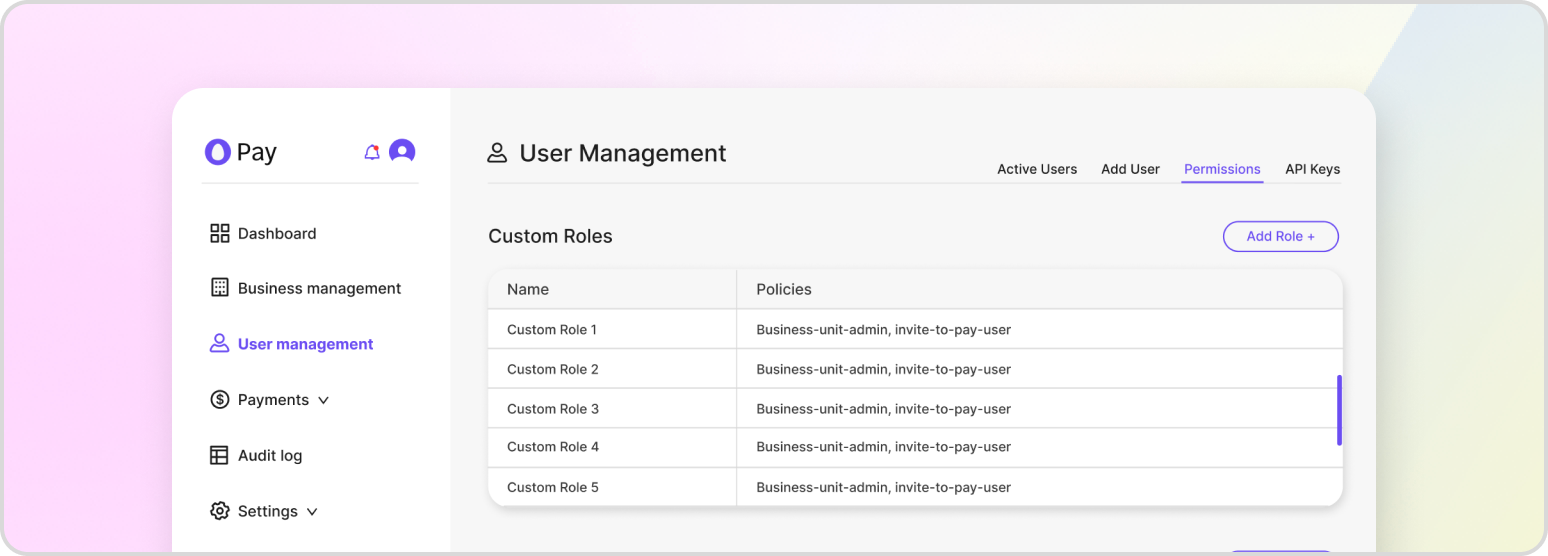
Once your tenant is registered, there are steps you must follow to take advantage of the convenience that HatchPay provides. Please do the following:
-
Create a Business Unit: This will allow you to configure how you want to manage your transactions
-
Attach a Payment Orchestrator: This will send customer funds to the back-end and is required for HatchPay to function properly
-
Generating an API Key: This will allow you to make system-to-system integrations with HatchPay and manage permissions
-
Configure I2P Branding (optional): If you are using Invite2Pay (I2P), you can customize the interface to suit your company’s branding
-
Set up Webhooks (optional): You can create notifications for relevant HatchPay events
-
Start using the HatchPay API: Once you have completed these steps, you can start performing common tasks with the API
Business Unit & Payment Orchestrators
You must first create a Business Unit to configure how you want to manage your transactions. This includes the routing configuration of how payments should be taken, as well as determining the business days that coincide with the date that funds should be captured.
A Payment Orchestrator attached to your business unit will also required to send customer funds to the back-end. If your business unit or payment orchestrator currently isn’t registered, then you can start by following the steps in Business Unit Setup.
API Key Generation
When a transaction is actively being made, HatchPay makes use of JSON Web Tokens to retain its state when requests are made between the agent and the customer. While using the HatchPay API, it is recommended that you have at least one API key created for your tenant to better manage system-to-system integration compared to just using JWT.
If you don’t have one, or if you suspect your permissions might be incorrect, you can follow the steps in Generating an API Key to make a new one.
I2P Branding (Optional)
If you’re using Invite2Pay (I2P), then you have the option of configuring branding. Branding allows you to customize the interface that I2P provides to uniquely suit it to your company. If left unmodified, then the branding that the client sees during their transaction will show Tempus’s name and logo.
You can learn more in the I2P section.
Webhooks (Optional)
Webhooks allow you to create a notification whenever a relevant HatchPay event occurs. Inside the tenant console, you may configure the webhooks belonging to your business unit by navigating to “Business Management,” selecting a business unit, and scrolling down to the notifications section.
For more information, please review the Webhook Setup section.
Final Note
Once those steps are complete, you are ready to use the HatchPay API! You can find common tasks you would like to perform with the API in the Tutorial category. For starters, you may want to Start an I2P flow to request payments from customers.