Business Unit Setup
Last updated: 10/23/2025
Setting up a business unit is an important first step for your tenant.
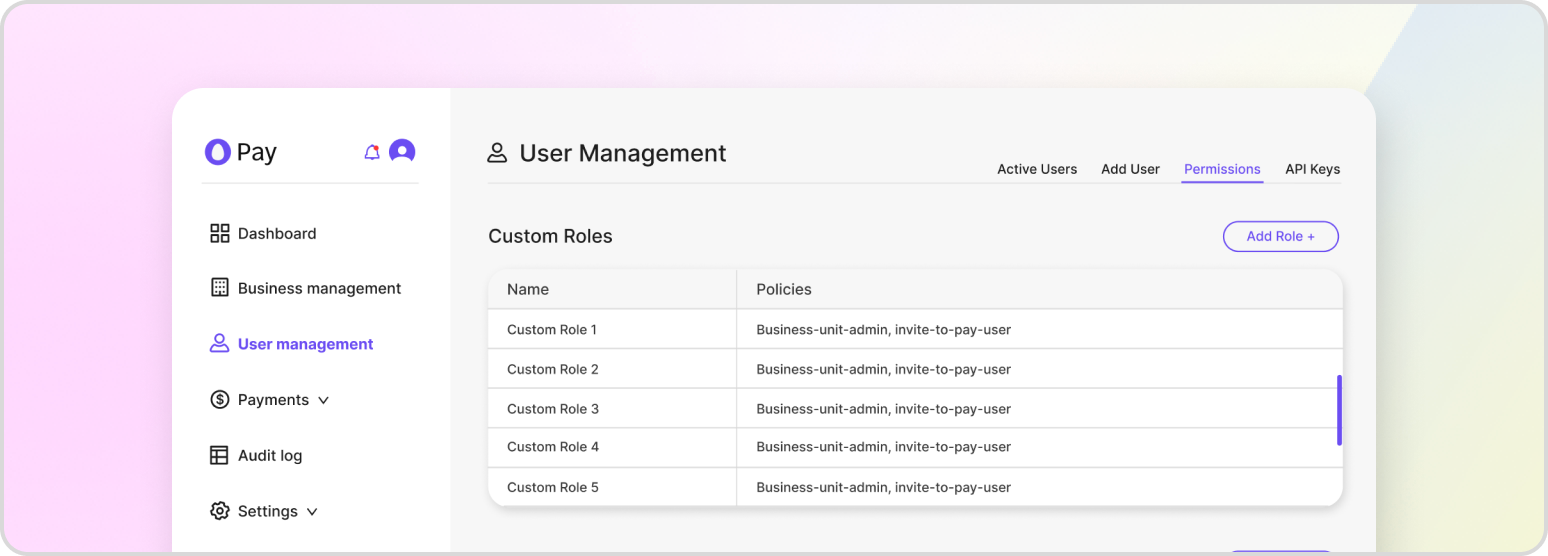
Before creating a business unit or payment orchestrator, it is essential to understand what each entails. A business unit represents a separate and distinct entity within your organization, such as a department. On the other hand, a payment orchestrator is a tool that enables you to create and manage payment gateways within your tenant. It allows you to define payment methods and set up payment gateways.
Creating a Business Unit
Inserting your business unit in HatchPay’s system can be accomplished by calling the endpoint below. Make sure your request body specifies the name of your business unit and the timezone that should be used for accounting purposes:
POST /v1/business-unit/business-units
{
    "name": "My First Business Unit",
    "timezone_name": "America/New_York"
}
In addition, timezones come from the IANA Time Zone Database. HatchPay currently supports the following timezones:
America/New_York
America/Chicago
America/Denver
America/Los_Angeles
America/Anchorage
America/Adak
Pacific/Honolulu
America/Phoenix
America/Boise
America/Indiana/Indianapolis
America/Indiana/Knox
America/Indiana/Marengo
America/Indiana/Petersburg
America/Indiana/Tell_City
America/Indiana/Vevay
America/Indiana/Vincennes
America/Indiana/Winamac
America/Kentucky/Louisville
America/Kentucky/Monticello
America/North_Dakota/Center
America/North_Dakota/New_Salem
America/North_Dakota/Beulah
Creating a Payment Orchestrator
Once your business unit is created, you will need to make a payment orchestrator. Inside the tenant console, you can create one by navigating to “Business Management” from the sidebar and selecting the business unit from the list that you wish to attach the payment orchestrator to. Once a modal appears, click on the “Payment Orchestrators” section and select the three dots across from it. Select “Add Payment Orchestrator” and fill out the form that appears above. Select save when you’re finished.
Keep in mind that both the iFrame URL and the Tokenizer API URL are optional. They are only necessary if you are using I2P. In addition, if no available options appear inside of the gateway authentication dropdown, you must create a payment gateway credential.
In addition, a direct API call can be made in order to directly post the data required to create a payment orchestrator:
POST /v1/business-unit/business-units/{business_unit_id}/payment-orchestrators
{
    "name": "Primary Payment Orchestrator",
    "business_unit_id": "7288e738-7a93-40ba-889f-3bdd37ab1d18",
    "order": 0,
    "payment_methods": ["CREDIT_CARD"],
    "payment_gateway_id": "d3b47371-b7be-47a8-972f-4d4c85f1e0ae",
    "payment_gateway_auth_info_id": "a4a6f1aa-8357-4436-8e92-e0bcdb8541c6",
    "gateway_url": "<YOUR_GATEWAY_URL>",
    "iframe_url": "<YOUR_GATEWAY_IFRAME_URL>",
    "tokenizer_api_url": "<YOUR_GATEWAY_TOKENIZER_API_URL>"
}
Creating Payment Gateway Credentials
Payment orchestrators require authorization information to connect to its payment gateway. You can configure the payment gateway’s authentication information inside of the tenant console frontend. If you haven’t already, select your business unit and expand the “Payment Orchestrators” section. Click the “Edit” button, select the menu across from “Gateway Authentication,” and choose “Add Gateway Auth.” From there, you can add the required authentication information needed to access your gateway and save it. You will now be able to select that credential when adding or editing a payment orchestrator.
HatchPay’s API is also available as well. Below is an example request for adding authorization information for requests to Tempus.
POST /v1/business-unit/payments-gateways/{payment_gateway_id}/auth-info
{
    "name": "Tempus Custom Configuration",
    "description": "Custom authentication for Tempus gateway",
    "auth_type": "Custom",
    "auth_config": {
        "RNID": {
            "location": "body",
            "value": "<TEMPUS_RNID>"
        },
        "RNCERT": {
            "location": "body",
            "value": "<TEMPUS_RNCERT>"
        }
    },
    "payment_gateway_name": "TEMPUS"
}