Business Unit
Last updated: 10/23/2025
Business units are one of the fundamental building blocks for how HatchPay benefits your tenant.
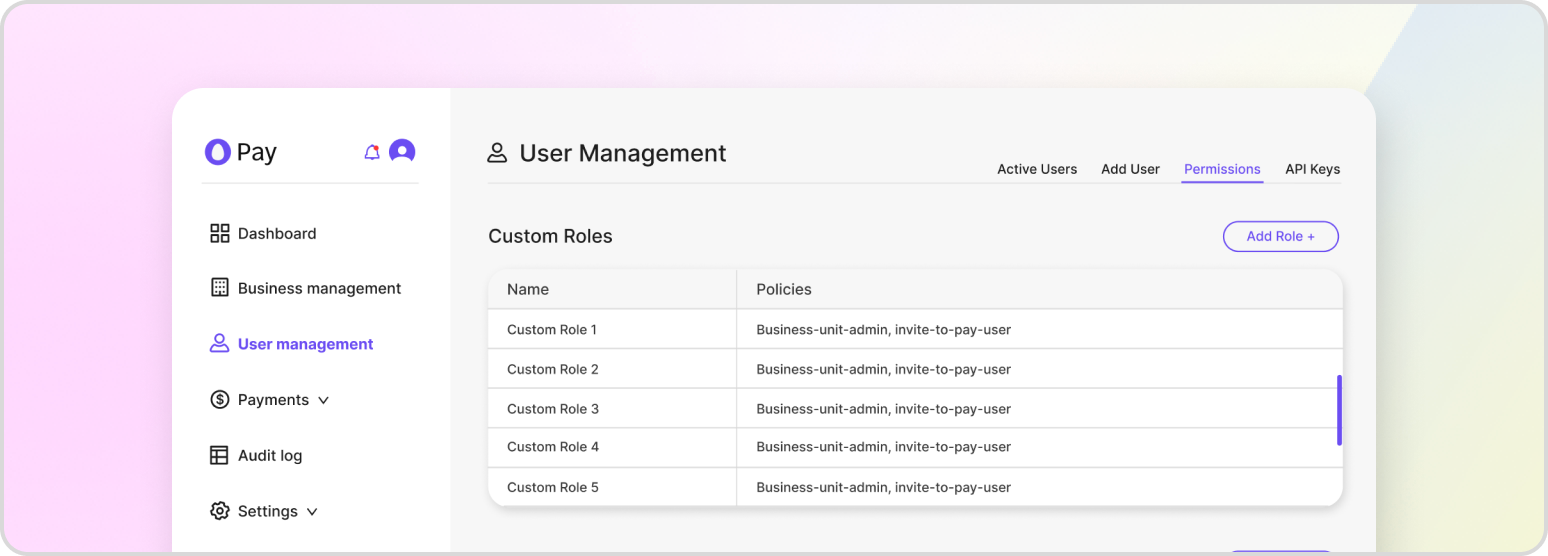
A business unit is a critical piece of configuration in HatchPay that allows users to process transactions. It is a logical entity that groups transactions and provides a way to organize and manage payments and other financial data. Business units can be set up to represent different organizations or physical branches or offices, depending on the needs of the user.
It has five different sections that can be configured: Payment Orchestrators, Communication, Branding, Accounting, and Notifications. Each one requires a credential in order to ensure that they can properly authenticate when used. Below are details on each:
-
Payment Orchestrators: This section allows users to consolidate payment gateways and payment methods for easier management. Users can add multiple payment orchestrators and assign them to specific payment methods or gateway integrations.
-
Communication: This section is used to configure what services are utilized when making a transaction over SMS and/or email. Users can either use HatchPay’s communication service or a custom one of their own.
-
Branding: This section allows users to change the name and logo that is displayed on the customer’s transaction screen when making a payment. Users can upload their own logo and choose the name that appears on the payment page.
-
Accounting: This section determines whether transactions are tracked at the end of day and whether a file is generated containing all payments made. Users can set up accounting rules to determine how transactions are recorded and reported.
-
Notifications: This section is used for managing and creating webhooks that trigger when a specified event is called. Webhooks allow users to receive real-time notifications when certain events occur, such as when a payment is made.
Creating a Business Unit
Using HatchPay relies on your tenant having at least one business unit. If your company doesn’t have one, please refer to Business Unit Setup.
Once you have created a business unit, you can begin using HatchPay to process payments. It is important to regularly review and update your business unit settings to ensure that they accurately reflect the needs of your business.
Viewing all Business Units
Every business unit within a tenant can be viewed with the following endpoint. Note that the tenant ID is automatically provided by your API key:
GET /v1/business-unit/business-units
Viewing a specific Business Unit
An individual business unit can be viewed by using the following endpoint:
GET /v1/business-unit/business-units/{business_unit_id}
Updating a Business Unit
A business unit can be updated with the following endpoint. Essential headers in the request body include “name” and “timezone_id”:
PATCH /v1/business-unit/business-units/{business_unit_id}
{
    "name": "Test Business Unit",
    "timezone_id": "a4cf107b-8a79-4529-8649-268952f7a0df",
    "branding_title": "Business Unit"
}
Deleting a Business Unit
A business unit can be deleted with the following endpoint:
DELETE /v1/business-unit/business-units/{business_unit_id}